
Overview
Reports in Ui.Marketing is where users can go to view reporting for their overall business, advertisers, specific products, and line items purchased.
Step-by-Step Guide
-
Navigate to https://ui.marketing/reports
- On the left-hand side, you will see different areas in Reports:
- Business Analytics: If you have permission, view reporting about your business and partnership with us.
- Report Builder: Build your own report based on filters selected and view advertiser reporting by high-level product (e.g. Google Search Engine Marketing, Display, Streaming TV, etc.). By default, you land here.
- Line Item Reporting: View reporting by each specific line item you have purchased.
- Saved Reports: Navigate to your saved reports you view frequently.
- To quickly start generating a report, search for the advertiser you want to see reporting for on the main screen.
- You will then be taken to the Report Builder Advertiser Summary page to see data for the "Past 30 Days". This will show you aggregated, high-level paid performance metrics for the advertiser you are viewing.
- You can then navigate to various areas of reporting for this advertiser by...
- Utilizing the filters on the top of the page or on the left-hand side. Adjust your date range and filter down to a specific product, line item, ad group, or location.
- Use the Line Items table to see performance for each line item this advertiser has purchased. Click on the Line Item Name to see performance for that specific line item. Click on the ellipsis next to the line item name; you can navigate back to that specific line item's details.
- Scroll down to see performance by product. Click on each product card to see the line items that the advertiser has running for that specific product.
- Lastly, under the product cards, you will find Additional Reports. This is where you can find reporting for things like your Organic SEO campaigns, foot traffic attribution (FTA) reports, etc. NOTE: These report metrics are not included in the Advertiser Summary high-level metrics at the top of the page.
- Once you have created the report you want to share with your advertiser, at any time you can create a shareable link or a PDF. You can customize which charts are included in what you share with the advertiser. And if this is a report you view regularly, you can easily save it to your Saved Reports to quickly navigate back to at any time.
Line Item Reporting
Line Item Reporting in Ui.Marketing allows you to quickly navigate to a specific line item's reporting. You can find the Line Items table within the Report Builder or Line Item Reporting sections of Reports.
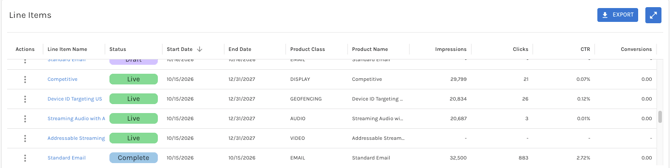
Within the table, you can compare performance across various line items for that specific advertiser. You can also export the list to a CSV file for more analysis.
Depending on the date range selected, you may see different line items. We display line items with start dates within your date range.
By clicking on the Action ellipsis next to the line item name, you can select View Line Item to be taken back to the line item detail page in a new tab. This allows you to easily toggle between the line item and reporting.
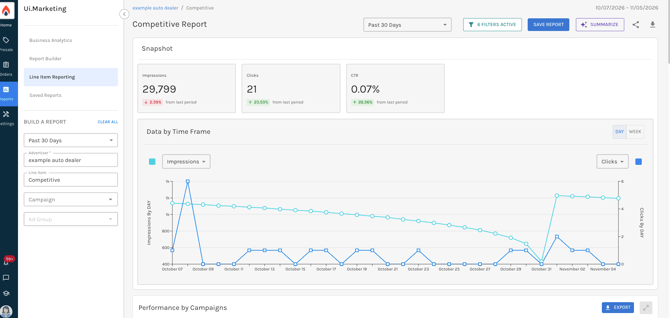
Clicking on the line item name takes you to reporting specific to that line item. At the top of the page, you will see the name of the advertiser and the name of the line item you are viewing. This report will show you all applicable charts that we have available for the product that was purchased.
Line Item Reporting FAQs
-
"No data for this line item": You will see this message if a line item has no performance data. For example, a setup fee product.
- Dashes vs zeros: Some products don't use standard paid metrics. Local SEO, for example, has no paid impressions or clicks. Those metrics show a dash, meaning "doesn't apply," and not zero. Selecting a dash takes you to that product's own report (such as the Location report).
- Totals may differ from the sum of line items: Advertiser totals include data from your connected integrations that we may not manage for you and therefore may not be associated to a line item. That means the overall total can be higher on the advertiser summary than adding up each line item.
- AI Reporting Summaries: Only the first five line items in the line items table will be included in the AI Reporting Summary when viewing the Advertiser Summary page. When viewing reporting for a specific line item, the summary will then only be applicable to that line item.