
Overview
All Ops users in Ui.Marketing are able to view all of the users that belong to their organization. This includes other ops users, division, and advertiser users.
Specific users can also invite and manage users within their organization.
ℹ️ Want access? Reach out to your dedicated customer success team to see if you'd be a good fit for this permission.
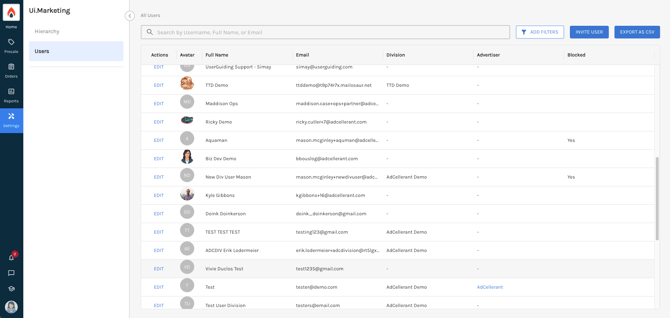
All Ops users can easily search or filter to find the user you are looking for. You can also export the user list as a CSV where you can see the user's last login date and time.
Inviting Users
Step-by-Step Guide to Inviting New Users
- Navigate to https://ui.marketing/admin/user
- Click Invite User in the top right-hand corner.
- Enter in the user's email address you wish to invite
- Select the level of access you want this user to have:
- Full: Full access allows the user the ability to see everything within your organization including all underlying divisions and advertisers.
- Full Division: Full division access allows the user to see all proposals, orders, and report for a specific division(s).
- Limited Division: Allows a user to only see specific proposals, orders, and reports that they are the requester for in a specific division(s).
- If the user needs Academy access, you can add them here. This is not a required field. You can add them as...
- Learner: Has access to your organization's Academy and can take courses and see content.
- Manager: This allows the user to have visibility into the performance, progress, and quiz reporting for all Academy users within their organization. It also gives them access to all Academy courses and content.
- ⚠️ If the user needs to be a Manager user, we require that you submit a Support ticket as well to ensure they are set up properly.
- Click Invite.
- The user will then get an email from no-reply@ui.marketing to set up their password and log in.
Managing Users
Step-by-Step Guide to Managing Users
- Navigate to https://ui.marketing/admin/user
- Find the user you want to make changes to and click Edit to the left of their avatar.
- You are then taken to the General tab within the user where you can update their information or block them. This is also where you add a phone number for the user if they are Sales Rep and you want it to appear on their Proposals.
- If you scroll down, you can see what access the user has. If you need to update their access, you will need to submit a Support ticket.
- You will also see the ability to Block the user if they no longer need access to Ui.Marketing.
- To manage the user's permissions, click on the Permissions tab at the top.
- Here you can add specific permissions by area (checkboxes) or enable/disable access to entire areas of Ui.Marketing with the toggles.
We'd love your feedback to learn more about what features you'd like when viewing and managing users. Feel free to send us feedback via our Portal.