
Overview
When creating a new proposal or order within Ui.Marketing, users can now select a Sales Representative to be associated with either the Advertiser within your hierarchy or for each specific proposal or order. This field is optional and can be left blank.
Once a Sales Rep has been added to a proposal/order, users are then able to filter the Proposals and Orders tables to only show items associated with that rep.
Sales Representative information will display on the Proposal as well as within a line item. This includes name, email, and phone number.
Walkthrough
Adding Your Phone Number
At this time, we do require a Support ticket be created in order to add your phone number and extension (if applicable) to your user.
Adding a Sales Representative to an Advertiser
By default, the Sales Representative should be set at the Advertiser-level within your hierarchy. Any Ops or Division-level user can add a Sales Rep to an advertiser. When the Sales Rep is set on an advertiser, it will then by default, appear on every Proposal and Order for that Advertiser.
When setting the Sales Rep, users can pick from any Ops or Division-level users.
Step-by-Step Walkthrough
-
Navigate to https://ui.marketing/admin.
- Click on your Partner name.
- Find the Division where the Advertiser lives and click on the name of that Division.
- Search for the Advertiser name and click Edit next to the name.
- Click on the General tab and scroll down to the Sales Representative field.
- Click on the field and search for any Ops or Division-level user. Select that user.
- Click Submit to save your changes.
Adding a Sales Rep to a Proposal or an Order
Step-by-Step
- Create a new Proposal or Order.
- Enter in the Advertiser name.
- Once an Advertiser is selected, you will see the Sales Representative field appear. If no Sales Rep has been set at the Advertiser, this will be blank. You are able to select from any Ops or Division-level user.
- If a Sales Rep has been set at the Advertiser, their information will appear here.
- If it is blank, and you select user to be the Sales Representative, this user will only be the Sales Rep for this particular Proposal or Order. They will not be the Sales Rep for any future new Proposals or Orders for this Advertiser.
- Continue to build the Proposal or Order as normal.
- On the Review page, you will have another opportunity to adjust the Sales Rep, if need be.
- For Proposal exports, users can select if they do or do not want the Sales Representative information to be shown on the Thank You page of the export.

Filtering by Sales Representative
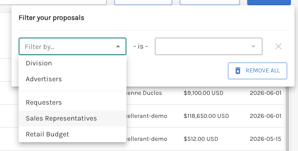
On the Proposals and Orders tables, users are able to apply a Sales Representative Filter to the table to only show the Proposals or Orders associated with that Sales Rep.
We highly encourage you to then create a Saved View to then come back to it again later.