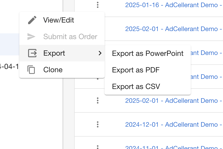
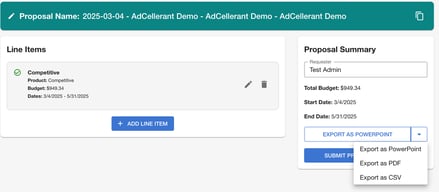
Our proposals are able to be exported into PowerPoint, PDF, and CSV. You can export a proposal from the Proposal table or from the proposal review page.
Customizing Your Proposal
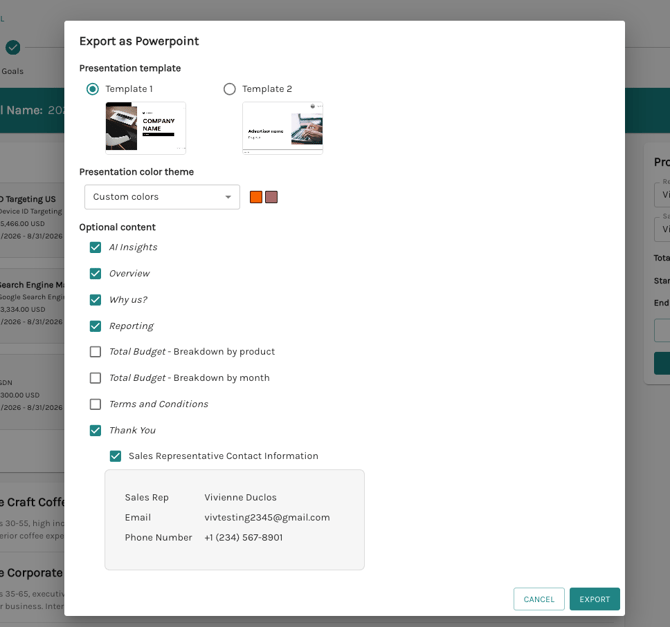
When exporting into a PowerPoint or a PDF, you will have options to customize what is included in your proposal before exporting.
Presentation Templates
Choose which proposal template you want to export your proposal in.
Color Themes
You have the option to export the proposal in either black and white or custom colors. To change your custom colors you will need to reach out to your Account Manager.
Optional Content
You can also select what slides you would like included when you export your proposal.
AI Insights
With this selection, we will include the advertiser insights on the Overview slide and add a slide with your Audience Profiles. We will also add a slide for the 'Geo Targeting' which will include the geographical insights based on what geo targeting you selected for your proposal.
Overview
This slide will populate with the Advertiser Insights and the goals selected in the first step of creating your proposal. You can always adjust this text in PowerPoint. Then you can also fill in the "What We Heard" and "Current Pain Points" sections within PowerPoint.
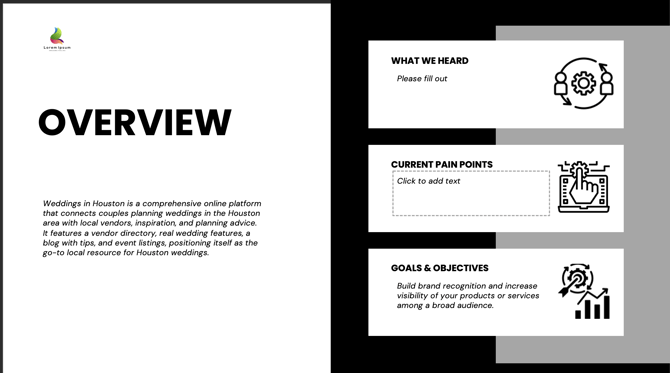
We highly suggest you remove this slide from your PDF export as it is only editable in PowerPoint. See our article on converting a PowerPoint into a PDF if you want to include this slide and then export to a PDF.
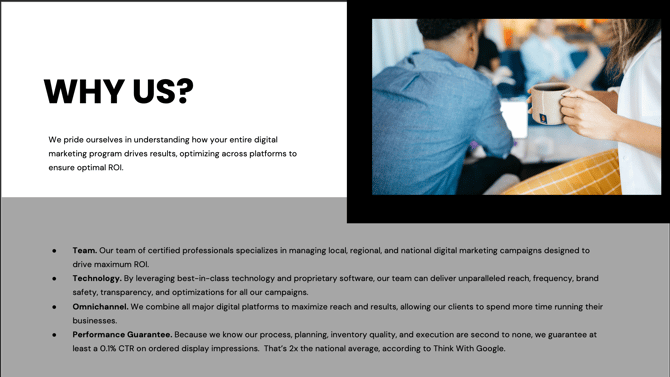
Why Us?
This slide is towards the end of the proposal and explains why an advertiser may want to work with us.
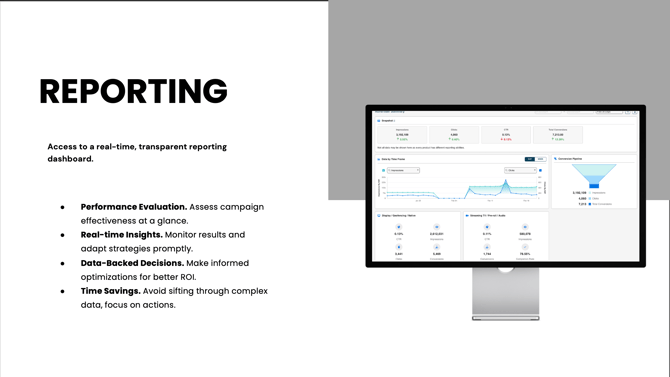
Reporting
Explains to your advertiser what kind of reporting they will receive with their purchase.
Total Budget
You now have the option to include a breakdown of your total budget you are proposing. You can break down the budget by month, showing you the budget per month or total budget by product.
 |
|

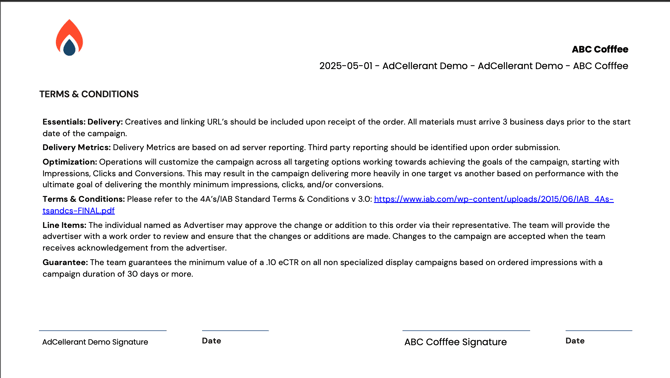
Terms and Conditions
This slide lists the terms and conditions for Ui.Marketing and gives you a place to have the advertiser sign on the dotted line if they agree with your proposal.
Thank You
This is the final slide in your proposal and states 'Thank You'. By default, if there is a Sales Representative associated with the proposal, we will include their contact information here.
If no Sales Representative is associated with the proposal, and the 'Thank You' option is checked, you will see filler information on this slide that you can edit within PowerPoint.
If the 'Sales Representative Contact Information' box is checked, but there is no Sales Representative associated with the proposal, this area will appear blank.