
Overview
Viewing Products
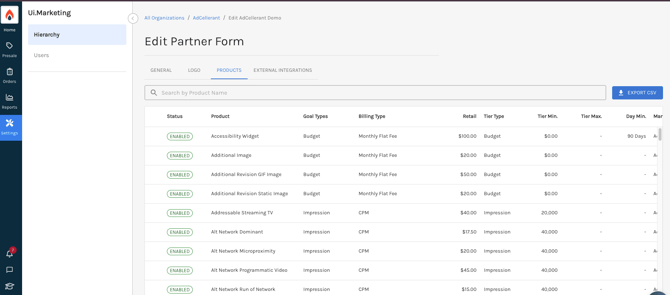
Products live at each level within your hierarchy: Partner, Division, and Advertiser. You are able to see what products are enabled at each level and their retail rates. You are also able to export the list of products into a CSV file.
To navigate to the Products tab:
- Click the Settings icon on the left-hand tool bar.
- Navigate to the hierarchy level you wish to see products for (partner, division, or advertiser).
- Click the Edit button next to the partner/division/advertiser name. Then click the Products tab.
⚠️ You may not see products at the division or advertiser-level that are available at the partner level. This is because for some reason, the product was not enabled for that division or partner.
If you'd like that product enabled for a division, reach out to your Onboarding Specialist or Support to get it enabled.
Managing Products
⚠️ Only users with the permission to manage products will be able to make the following changes.
‼️ Changes made to any products will reflect in the hierarchy (Partner > Division > Advertiser) and must be made with an abundance of caution. ‼️
Authorized Ops users can manage product details directly within Ui.Marketing. This includes retail rate editing for all AdCellerant-managed products, while providing extended editing capabilities for self-managed (O&O) products. These expanded controls allow users to adjust wholesale rates, minimums, and custom product names directly in the interface for their own self-managed products.
Editing Retail Rate of AdCellerant-Managed Product
Ops users with the correct permissions can update the retail rate of AdCellerant-managed products. This can be updated by selecting the edit action on the desired product and directly customizing the rate card. As a reminder, this change will reflect across the entire Partner, underlying Divisions, and Advertisers.
To edit Division products, you will follows the same workflow outlined below.
Edit Partner-Managed (O&O) Products
Authorized Ops users will be able to edit their own managed products by selecting the edit action on their desired product, and directly customizing the rate card or the product’s custom name. As a reminder, this change will reflect across the entire Partner, underlying Divisions, and Advertisers.
To edit Division products, you will follows the same workflow outlined below.
Enabling & Disabling Products
Authorized Ops users will be able to enable their own managed products and disable both their own managed products and AdCellerant-managed products.
⚠️ Disabling a product means that it is no longer available to select when adding new line items or creating a new proposal.
This should be done with an extreme abundance of caution, especially as it relates to AdCellerant-managed products. In order to re-enable AdCellerant-managed products, you will need to submit a Support ticket to our team.
Product Glossary
- Status. This is the status of the product. You will always see enabled products and not disabled products.
- Product. This is the name of the product which is automatically inherited from our standard rate card. You can create a custom name for any products if you have the correct permission.
- Goal Types. This is what the product is paced against. For example, our Dominant display product is paced towards impressions and clicks, so those are set as the goal type. We have the following goal types:
- Impression
- Budget
- Click
- View
- Billing Type. This is how we bill for this product. We have the following billing types:
- CPM: Cost per mille (or cost per thousand impressions)
- CPV: Cost per view
- Monthly Flat Fee: A monthly one time flat fee
- Monthly MGMT Fee: A percentage of ad spend will get billed as a management fee
- SetupFee: A one time fee to set up the campaign.
- Retail. This is your retail rate for that specific product.
- Tier Type. If the product is billed based on tiered amounts, this tells us what the tiers are:
- Ad Spend
- Budget
- Click
- Impression
- View
- Tier Min. This is the minimum budget or impressions that are required to run a campaign and if there are tiered rates, where the tiered rates start.
- Tier Max. This is the maxiumum budget or impressions for tiered rates, or the final rate that can be applied for a tier.
- Day Min. The minimum number of days a campaign must run for.
- Managed By. This is who manages the campaign.
- AdCellerant: This product's campaigns are managed by AdCellerant.
- Partner Name: The product's campaigns are managed by you/your partner.
- Owned By. This is who owns that product and is charge of updating the name, rates, minimums, etc.
- AdCellerant: This is a product that AdCellerant created and manages.
- Partner Name: This is a product that you/your partner created and manage.