
Overview
Ops-level users in Ui.Marketing are able to update the logo for the partner, division, and advertiser for it to appear within the application and on exports (reports and proposals).
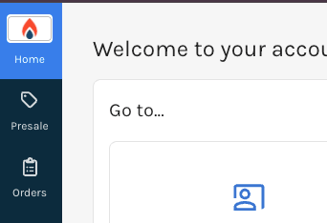
The logo can be seen within the application in the upper-right hand corner.
It can also been seen on report and proposal exports. Below are some examples:
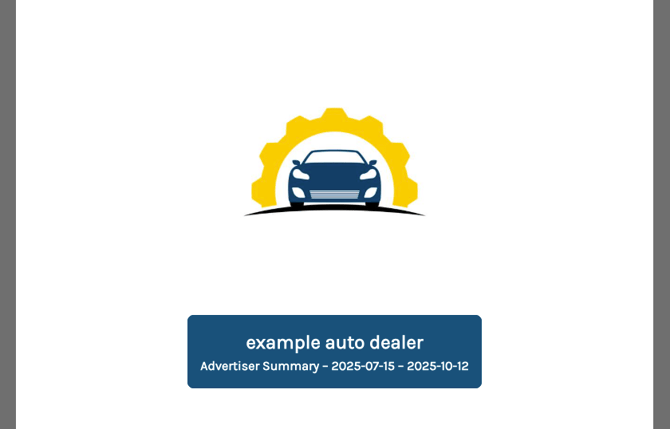
Reports PDF Export - Advertiser Logo Example |
|
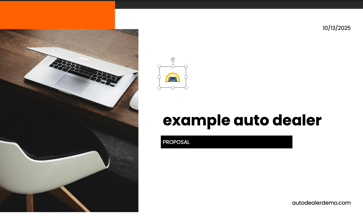 Proposals PowerPoint Export - Advertiser Logo Example
We highly suggest a square, 1:1, sized logo.
If a division-level logo is added it will take precedence over the partner-level logo on exports.
Walkthrough
Step-by-Step Walkthrough
- Navigate to Ui.Marketing.
- Click the the Settings icon on the left-hand navigation bar.
- To edit the Partner logo:
- Click EDIT next to the partner name
- Click on the Logo tab.
- Click the Browse Files button to find and select the logo file you'd like to upload.
- You file will automatically save!
- To add a Division logo:
- Click on the Partner name.
- Find the division you want to add a logo for and click Edit next to the divison name.
- Click on the Logo tab.
- Click the Browse Files button to find and select the logo file you'd like to upload.
- You file will automatically save!
- To add an Advertiser logo:
- Navigate to the division within your hierarchy and find the advertiser you'd like to add a logo for. Click Edit next to the advertiser name.
- Click on the Logo tab.
- Click the Browse Files button to find and select the logo file you'd like to upload.
- You file will automatically save!