
What you need before getting started
In order to set up your Amazon pixel(s), you will need the following:
-
Access to the GTM installed on the website
-
The ID of your advertiser’s Amazon pixel. Please reach out to your campaign manager to receive it.
-
Confirmation of which conversions you want to track. We can track up to 5 conversions per campaign.
How to configure the Tag in GTM
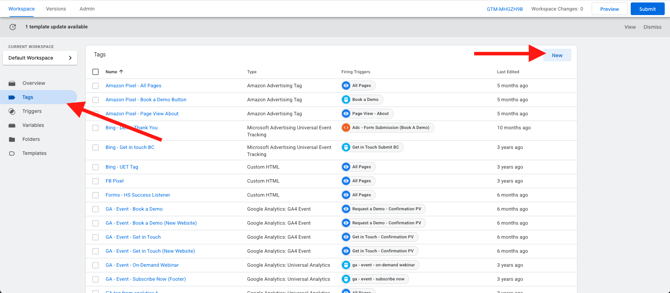
In order to set up your tag in GTM, click into the “Tags” section on the left, and then “New”
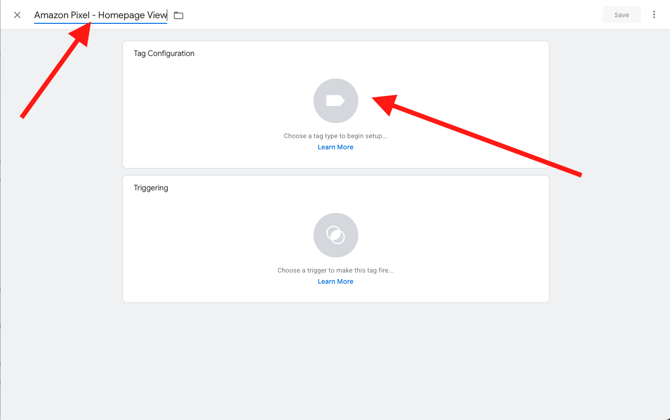
Give the pixel a name that helps you identify what it does. Our recommendation is to include Amazon in the naming, and since each conversion has it’s own tag associated with it, make sure that the naming is specific to the event you are tracking, such as “Homepage View”, or “Contact Button Click”, for example. After naming the pixel, click into the “Tag Configuration” Box
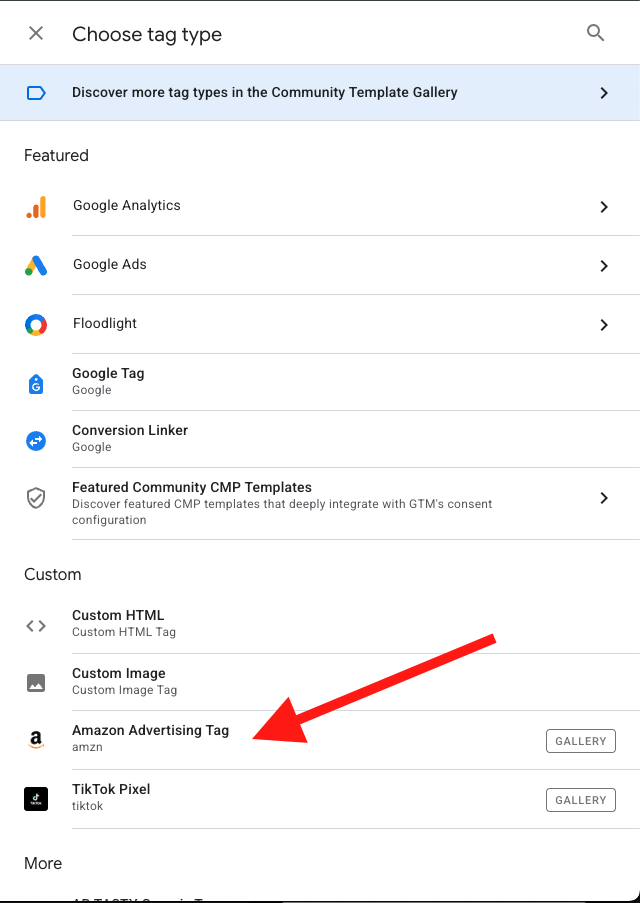
The easiest way to set up the Amazon pixel is to use the “Amazon Advertising Tag” Template.
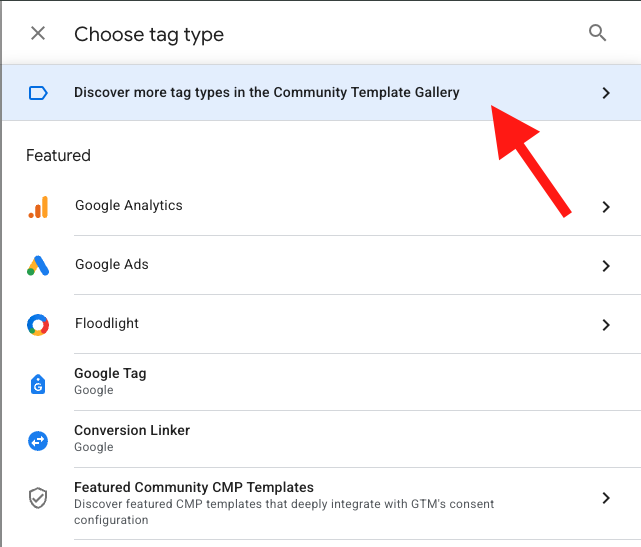
If you cannot find this template, you can add it to your GTM by clicking into the
”Community Template Gallery”
Search for “Amazon” and select the “Amazon Advertising Tag” template. Select “Add to Workspace” and confirm all dialogue boxes.
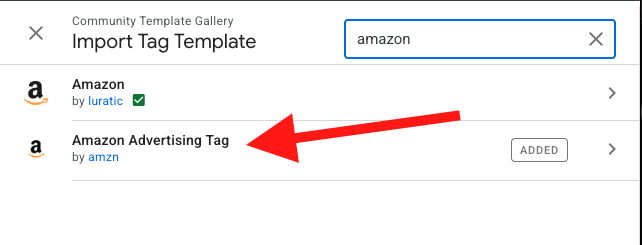
Once this has been added, you can now select this as your tag type.
Once you are in the template, click “Add Tag” for the text box to appear and paste the Amazon Pixel ID into the box. This ID will be the same for every conversion you set up. This will ensure that the event is passed back to the Amazon DSP.
Next, you can name the conversion. It is recommended to switch to “Custom” and name the conversion in a way that is immediately obvious what is being tracked here. This name will also pass back to the Amazon DSP and can be pulled into reporting. Since we are tracking visitors to the homepage in this example, I named it “Homepage View”.

After this, the next step will be to set up the Trigger on when this pixel should fire.
How to configure the Trigger in GTM
After setting up the tag, as outlined in the previous step, it is now time to set up the trigger for the event. This tells GTM exactly what action needs to take place on the website for this event to trigger. After setting up the tag, you continue to scroll down and click into the “Triggering” box:
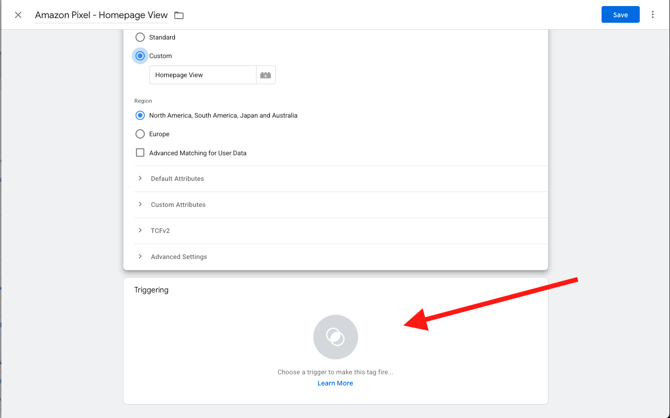
There usually are some predefined triggers to choose from, but most commonly, you will have to define a new trigger for your specific event. Click the blue plus button in the top right of the screen:

Name the trigger so it is obvious what this trigger does, in this case it’ll track visitor to the homepage. Next, click into the “Trigger Configuration” box.
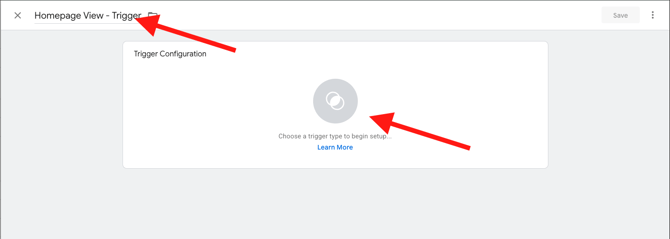
Next, you will choose your trigger type. The most common ones to use are either “Page View” or Clicks to “All Elements”. Page View allows you to track people that have visited certain pages, while clicks allow you to track people clicking on certain buttons or areas on your website.
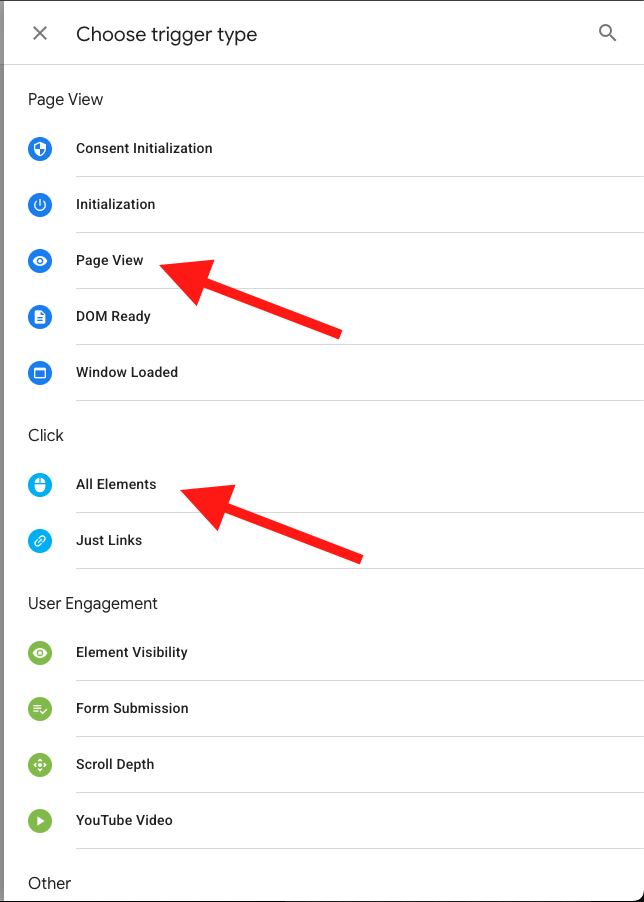
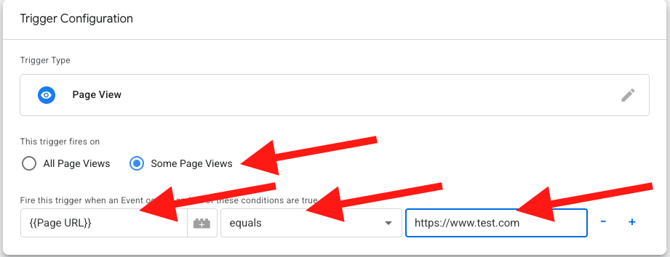
For our example of a Homepage view, we are going to select “Page View”. This will open up a new window that allows you to define what exactly you want to track. There are four different parts to this:
-
“The trigger fires on” - In most cases, you will need to change this to “Some Page Views”, in order to limit conversions to the exact site you want to track.
-
Defining what GTM should look for. For Page Views, using the value is the easiest way to define the site you want to track.
-
The selection for the second box will depend on what you want to track
-
If you want to only track people to the exact site, and no sub-sites or anything else, the best selection for the third box is “Equals”. This means that an exact match to that site is needed for the conversion to fire.
-
If you want to track not only the main site, but also sub-sites, you can use “Starts with”. This will result in all further sites that start with the same URL as you are tracking to also be counted. An example where this might be useful is if you’re tracking a contact page, that breaks down further into individual locations. By using “Starts with”, you can track all locations with the same conversion.
-
E.g. the main site is https://www.test.com/contact, and this breaks down further into https://www.test.com/contact/Colorado and https://www.test.com/contact/Montana etc., you can track all locations with one conversion by using “starts with”
-
-
-
The final step is where you put in the URL you want to track for this conversion. Simply copy and paste the URL from the browser
Finally, click save in the Trigger setup, and save again in the overall tag set up:
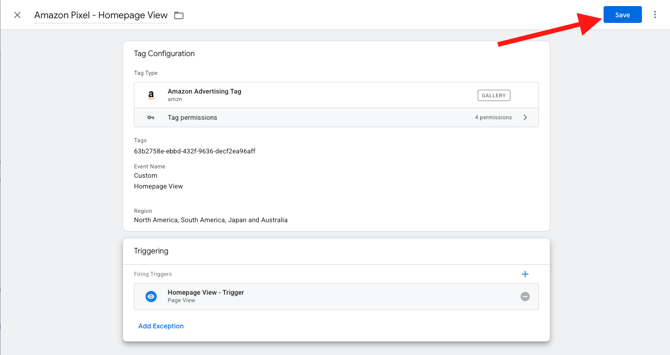
You will need to repeat this process for each conversion you want to track. Once all five conversions have been set up like that, you’ll navigate back to the home screen, and click the “Submit” button. This will publish all changes that have been made to the website.

Once the pixels have been placed on the website, it will typically take a few hours for them to show up in the Amazon DSP. Please reach out to your campaign manager to confirm if all conversions are showing up as intended. Please note that an event has to occur for it to show up in the DSP, so if it’s a rarer event we are tracking, it might take longer for it to appear.